
Overview
Real-time collaboration lets multiple team members edit the same merchandising rule, sort order, recommendation block, facet values page, ranking rule, or audience at the same time. You can see who else is on the page, track their cursors, leave threaded comments, and receive in-app notifications without overwriting each other’s work. Collaboration is available on:- Merchandising rule editor — presence avatars, live cursors, field locking, drag locking, and comments
- Sort order editor — presence avatars, live cursors, field locking, shared preview selections, and comments
- Recommendation block editor — presence avatars, live cursors, field locks, comments, and a shared block draft
- Facet values editor — presence avatars, live cursors, group locks, comments, live reordering and grouping, and hidden-value sync
- Ranking rule editors — shared drafts, presence avatars, live cursors, field locks, and comments for both standard and visual rules
- Audience editor — shared names, conditions, and SegmentQL text with presence avatars, live cursors, field locks, comments, and agent activity
- Notification center — comment replies, store invite notifications with accept/decline actions
Real-time collaboration is enabled by your account administrator. If you don’t see collaboration features, contact your admin or reach out to support.

Presence avatars
When two or more people are viewing the same page, colored avatar circles appear in the page header showing who is currently active. Each avatar displays the teammate’s initials in their assigned color. Colors come from a high-contrast palette so you can tell teammates apart.- Up to three avatars are shown at once. If more people are present, a +N badge indicates additional viewers.
- Click the avatar row to open a list of everyone on the page.
- Teammates who have been inactive for 60 seconds appear faded and are labeled Away.
- Each teammate keeps the same color across avatars, cursors, field locks, drag ghosts, and comment pins for the duration of a session.
- AI agents editing through the Layers MCP server appear alongside human teammates. Each agent shows up as a distinctly colored avatar with its own name. Its selections and field focus tint rows and lock fields the same way a human’s would.
- In-dashboard AI actions surface here too. When you run AI Sort & Group on a facet, the run appears as an “AI Sort & Group” agent participant. Its proposed ordering streams into the editor live for everyone in the room.
Live cursors
As teammates move their mouse across the page, you see their cursor in real time. Each cursor is color-coded and labeled with the teammate’s first name so you always know who is working where.Field locking
When a teammate focuses on a form field, that field is automatically locked for everyone else. Field locking prevents two people from editing the same setting at the same time.- A colored border appears around the locked field, matching the editor’s assigned color.
- A name badge floats above the field showing who is editing it.
- Locked fields are non-interactive for other teammates until the editor moves to a different field.
Shared preview selections in the sort order editor
The sort order editor’s preview bar selections (the collection, shopping channel, and context dimensions you preview against) sync across collaborators, so everyone in the room previews the same shopper context.Recommendation block editor
The block editor shares one live draft across collaborators. Changes to the title, product source, strategy settings, safeguards, rules, and fallbacks appear in everyone’s editor in real time. Locks protect the placement, product source, strategy configuration, rules, fallback, and safeguard sections while someone edits them. Presence avatars, live cursors, comments, and animated agent edits help you follow the work. One collaborator saves or publishes the shared draft. While an AI agent is publishing the block, editing pauses briefly and a banner lets you know. Your entries are kept and become savable again automatically, and the Save and Publish buttons are disabled until the publish finishes.Ranking rule editors
Both standard and visual ranking rule editors share a live draft with collaborators. Changes to targeting, actions, and visual product pins sync across the room. Field locks, live cursors, comments, and agent activity help your team coordinate before saving.Audience editor
Open an existing audience from Customers → Audiences to work on its name, conditions, and SegmentQL text together. Field locks, live cursors, comments, and animated agent edits help you follow changes. Draft edits do not affect live rules until you save. Saving updates the targeting of every rule that references the audience, so check where it is used before approving a change. See Manage audiences.Reviewing AI changes
AI assistants can prepare shared drafts for merchandising rules, sort orders, recommendation blocks, facet values, ranking rules, and audiences. Drafting alone does not change what shoppers see. When an assistant asks for review, it shares a link to the affected editor. Open the link and select the approval-request badge to open Review changes. The dialog shows who requested approval and a summary of the changes. Use Review in editor to inspect the draft, Approve & save to save it, or Reject to open the rejection options. Approval saves the current editor contents, not just the changes described in the summary. Review the draft before approving, especially if collaborators have continued editing. You can also approve by saving from the editor. The assistant should wait for the review outcome before making more changes, unless you ask it to continue editing. Requests expire after 72 hours without a decision. When rejecting, you can leave a note for the assistant and choose what happens to the shared draft:- Discard draft is selected by default. It restores the last saved version in the shared editor and removes unpublished changes. Select Reject & discard draft to confirm.
- Keep draft for further edits leaves the unpublished changes available to revise. Select Reject & keep draft to confirm.
Drag locking
In the merchandising rule editor, when a teammate drags a product to reorder it, that item is locked so no one else can move it at the same time. The lock is released as soon as the drag is complete.Live drag preview
While a teammate is dragging, you see their action in real time:- A ghost card follows their cursor, showing the product being moved along with the teammate’s name badge.
- The product grid reorders live as the dragger hovers over different positions, so you can preview where the product will land before it is dropped.
- The original slot shows a colored dashed placeholder in the dragger’s assigned color, marking where the product came from.
Facet values editor
The facet values editor supports live co-editing of a facet’s storefront ordering, groupings, and hidden values. Open a filterable attribute from the attributes list to co-edit its facet values with your team.- Presence avatars and live cursors appear in the page header, matching the behavior on the merchandising rule and sort order editors.
- Live reordering — when a teammate drags a facet value to a new position, everyone else sees the list animate into its new order in real time.
- Live grouping — when a teammate adds values to a named group (for example, grouping “Crimson” and “Scarlet” under “Reds”), the grouping updates for everyone in the room.
- Group locks protect a group while someone edits it, including changes to its values and grouping. Wait for their lock to clear before changing the same group.
- Comments let you discuss facet changes in place before saving.
- Hidden values sync — showing or hiding a facet value from the storefront updates the list for every collaborator immediately.
- Peer selection — rows another teammate is selecting or dragging are outlined in their assigned color so you can tell who is working on which value.
- Agent activity feed — when an AI agent edits facet values through MCP, a small activity indicator appears next to the presence avatars. Click it to open a timeline of the agent’s stated intent and the fields or values it just changed. The indicator only appears while there is agent activity to show.
- Animated agent edits — when an MCP agent applies a patch that touches multiple facet values, merchandising pins, or banner fields, the change is played back for viewers in short steps instead of appearing all at once. A colored marker travels to each affected row or field so you can follow what the agent is doing. Each step is captioned with the agent’s own reason for that change when the agent provided one. Playback pauses and snaps to the final state if you interact with the page, switch tabs, or your system has reduced motion enabled. Playback runs entirely in your browser. The underlying edit is a single atomic write, so what gets saved is identical whether or not you watched the animation.
Comments
Leave threaded comments on merchandising rules, sort orders, recommendation blocks, facet values, ranking rules, and audiences. Comments are pinned to specific positions on the page so your team can discuss changes in context. The following animation shows how to enter comment mode, place a comment, and continue the conversation in context.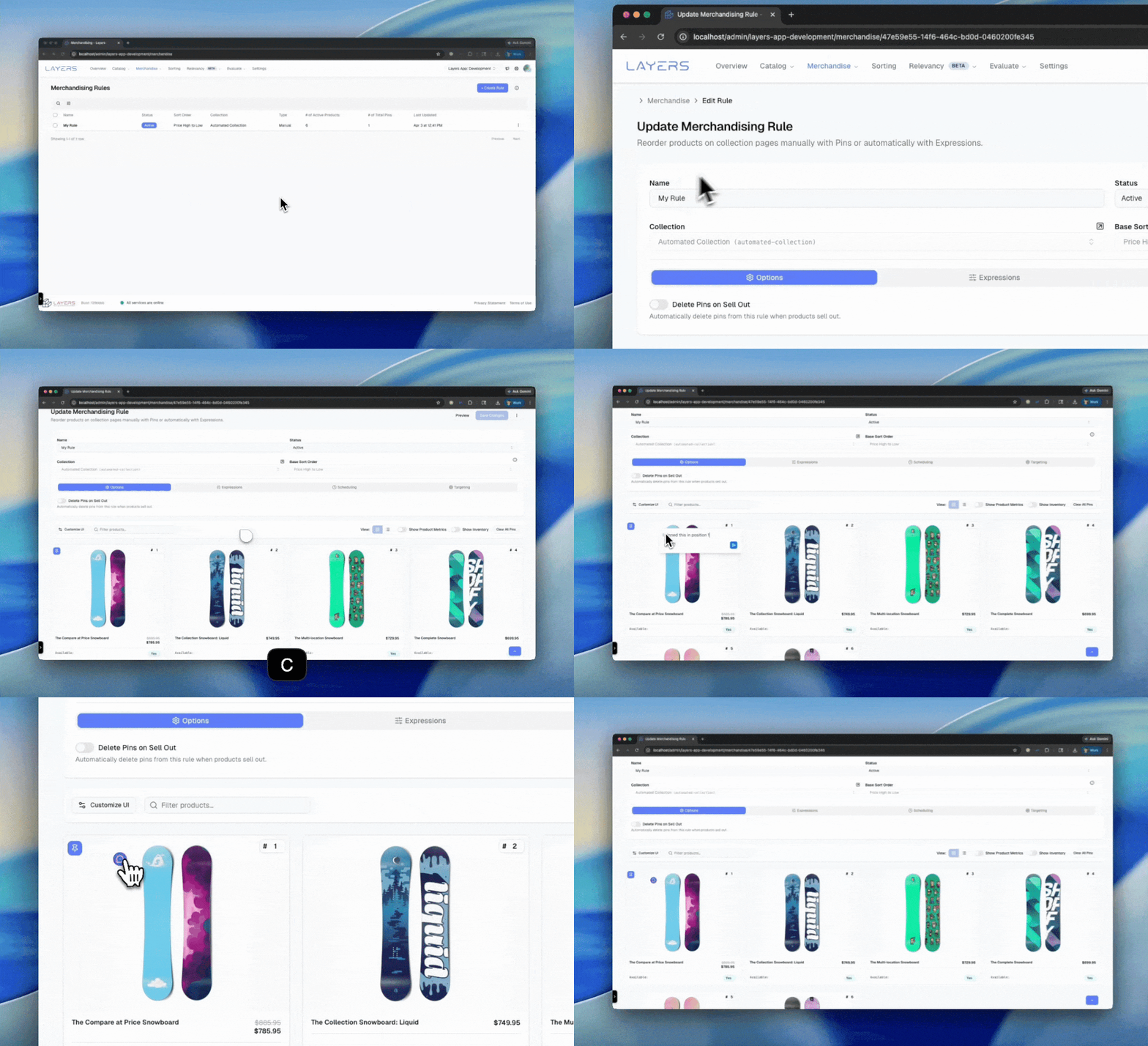
Place a comment
- Click the comment icon in the toolbar, or press C on your keyboard to enter comment mode.
- Click anywhere on the page to place a comment pin.
- Type your message in the composer that appears and submit.
View and reply to comments
- Click any comment pin to open the thread and see all replies. Each pin shows the author’s initials in their assigned color so you can identify who started the conversation.
- Pins display a counter badge when a thread has multiple messages.
- Resolved threads appear faded to distinguish them from active discussions.
Exit comment mode
Press Escape or click the comment icon again to leave comment mode. An unresolved comment count badge appears on the toolbar button when there are open threads.Notification center
The notification center is accessible from the bell icon in the dashboard header. It collects all of your real-time notifications in one place.What triggers a notification
- Comment replies — when a teammate replies to a thread you started or participated in, you receive a notification with a preview of the message. You can reply directly from the notification panel without leaving your current page.
- Store invites — when you are invited to a new store, a notification appears with the inviter’s name and the store name. You can Accept or Decline the invite directly from the notification.
Using the notification center
- Click the bell icon in the top-right corner of the dashboard to open the notification panel.
- An unread count badge appears on the bell when you have unread notifications.
- Click Mark all as read at the top of the panel to clear the unread count.
- Click any comment notification to expand it. Use the Reply button to respond inline without navigating away.
- Store invite notifications display Accept and Decline buttons. Once you act on an invite, the notification is removed.
Form state recovery
The sort order, merchandising rule, and attribute editors automatically save your unsaved changes in the background. If you navigate away or close the browser before saving, your work is preserved and can be restored when you return.How it works
When you make changes to a form without saving:- After one second of inactivity, your unsaved edits are saved locally in your browser.
- When you return to the same editor, a notification appears showing when the unsaved changes were made (for example, “From 2h ago”).
- Click Restore to reload your unsaved changes, or dismiss the notification to discard them and start fresh.
Form state recovery is disabled when real-time collaboration is active on a merchandising rule. In that case, changes are synced live between collaborators instead.
Where form state recovery is available
- Sort order editor — form fields and configuration
- Merchandising rule editor — form fields, pinned products, and expression settings
- Attribute editor — form fields and configuration